
What Are Pages #
A page is a destination within the website which is specifically setup to show case a particular set of information about the business or organization. An example of a page is the home page which is the first page that a visitor sees when opening the website. It is setup to welcome visitors by giving a general introduction about the services and products of the business. Another example of a page is the About Us page which delves deeper into what the venture is all about. Info like how the company started, its missions and goals forms part of this page.
Adding A Page #
To add a page click on the Pages menu and click on Add Page.A screen will open allowing you to Add Title and the Content of the page in the content area.
Important Note! #
A page can have various types of information including general text and images but it can also have programming code which extend the depth of information the page has allowing it to showcase complex layouts and designs. It can also have what is known as a shortcode and it can be empty. In most cases complex layouts are achieved using an additional pierce of software known as a page builder. The page builder we are using in our case is called Elementor. and below, the document will explain how to use Elementor.
- It is important to note that if a page is built using Elementor, it can only be edited using Elementor.
- In case of a page built with Elementor, the description field in the page edit screen must be left blank.
- If you are building a new page, first put in the title of the and leave the Content area blank and than publish the page before you can edit it with Elementor
#
Editing A Page With Elementor #
In the All Pages list, hover over the page you want to edit and click on Edit With Elementor. The Elementor editor screen will load. If you are in the Page View window, you can click on the button that says Edit With Elementor and the Elementor Editor will load.
The Elementor editor is visual based editor which has many various components that can be used to build a web page and we will not get into all of them in this tutorial, rather, this tutorial is guide for editing existing pages rather than creating new pages from scratch.

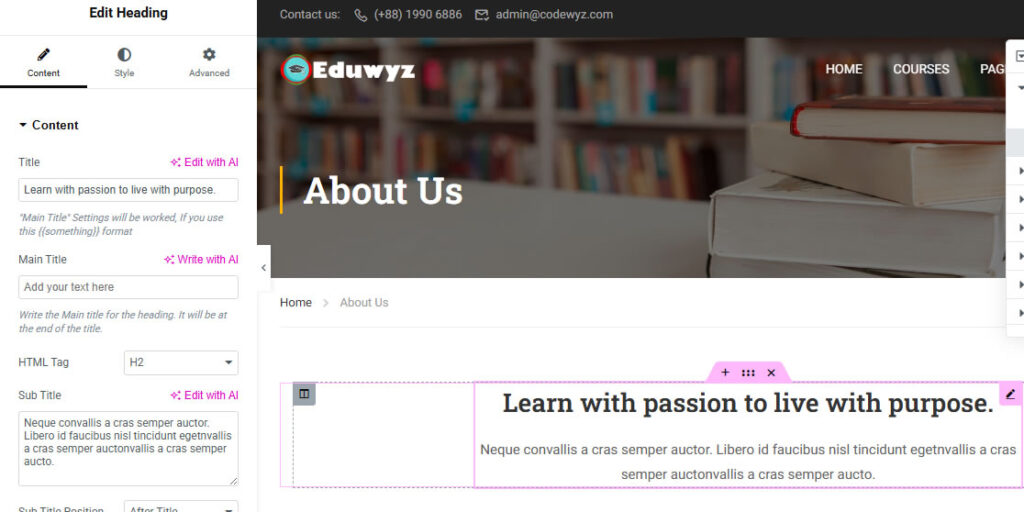
In this example, suppose we wanted to change the header “Learn with passion to live with purpose” one would click on it its corresponding setup panel will appear on the left plane of the Editor.
From there the Title as well as the subtitle can be edited
The image below shows the editing of an Icon Box which is just of the many different elements that can be used to build a page. It is an element that combines an image with a header and text. Clicking on the Icon Box reveals its settings on the right hand side where the Title, Description, Icon and Link can be set.

Once you are done editing, click on the Publish button at the top right corner of the screen


